
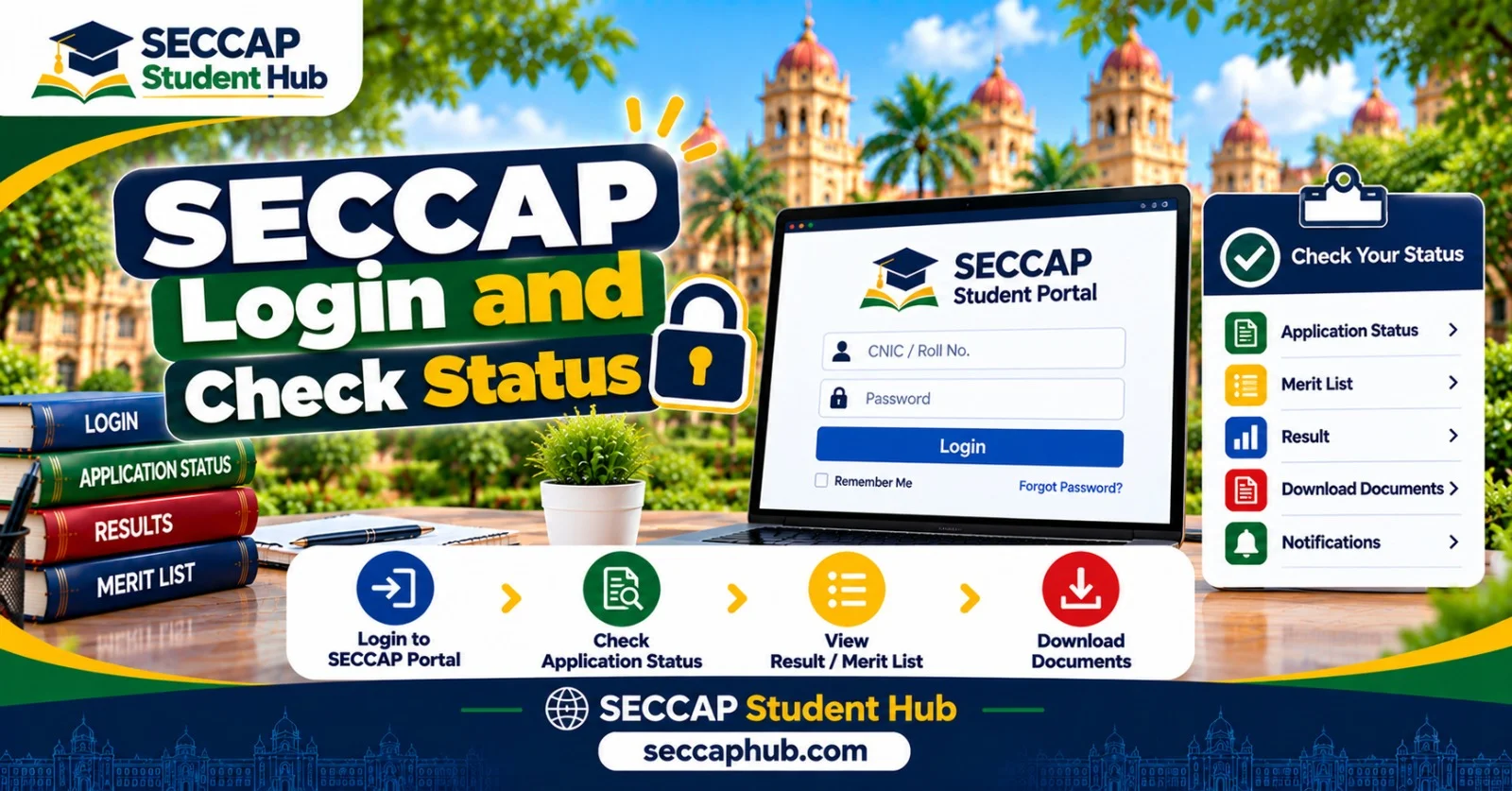
Your SECCAP login (the SECCAP portal login) opens the student portal, where you follow your application, see notifications about your allotted college, and later download your ID card. This page explains where your username and password come from, how to sign in, how to check your college admission online with or without logging in, and what each part of the portal does. We wrote it after filling the SECCAP form ourselves on 9 October 2026, so the screenshots are real (personal details blurred). If you typed “SECAP login”, you are in the right place: it is the same portal, on the Sindh government’s own gos.pk domain, which is why some students search for it as “Sindh College Education govt pk SECCAP”.
Quick answer: SECCAP login and check status
- No account needed before you apply. There is no OTP. If you apply directly, your account is created when you submit the SECCAP form. Registering first is optional.
- Username: your CNIC or B-Form number (13 digits, no dashes).
- Password: if you applied directly, it is made by the system and shown only once, on the screen after you submit. It is not sent by SMS or email. If you registered first, it is the password you set yourself.
- Check status without login: on the official Track Application page, with your CNIC and tracking number.
- Login page: seccap.dgcs.gos.pk/login.
Go to SECCAP loginOpens seccap.dgcs.gos.pk/login on the official portal
Where your SECCAP username and password come from
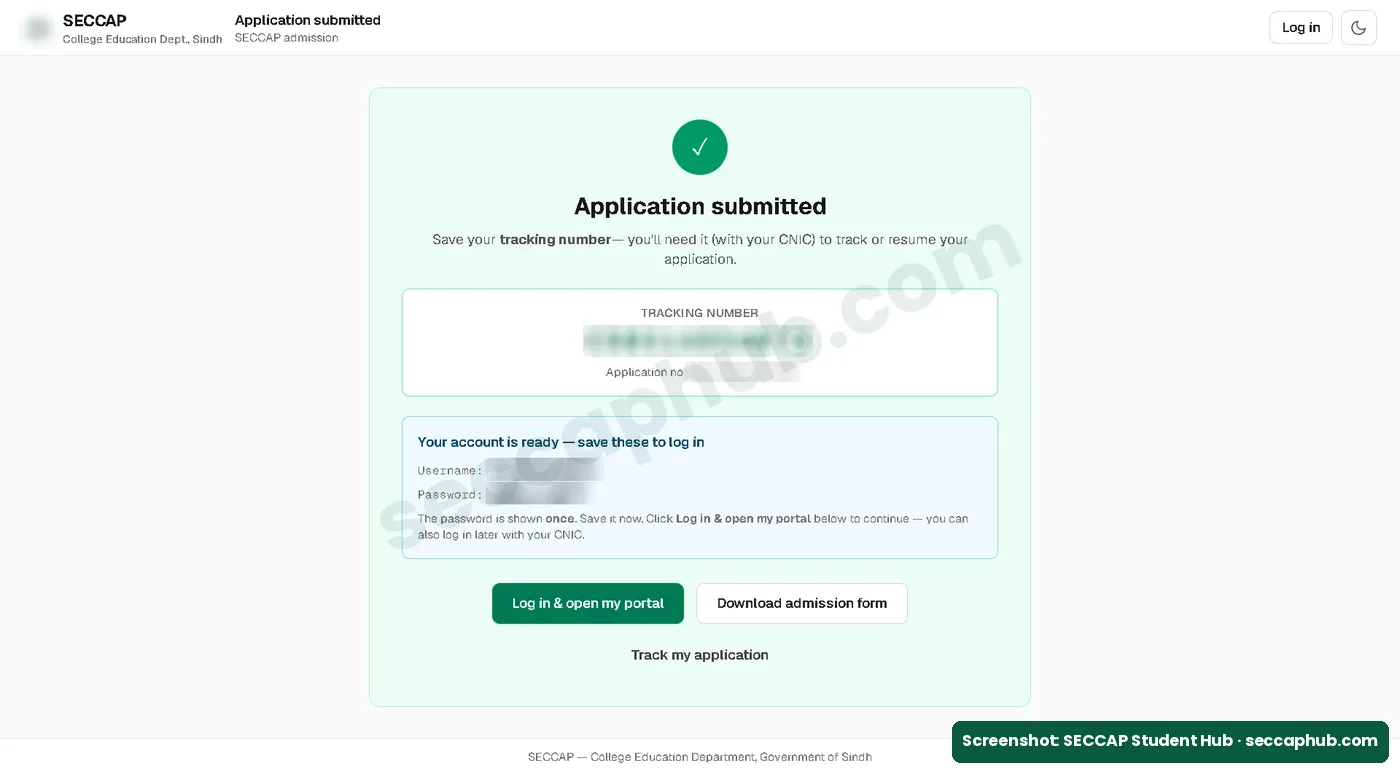
When you submit the SECCAP form, the portal shows an Application submitted screen with:
- your tracking number, a 12-character code;
- your application number, which starts with SEC-2026;
- your username, which is your CNIC number; and
- your password, made by the system.
The password is shown only once
Write it down or take a screenshot before you leave this screen. It is not sent by SMS or email. Never share it with anyone, including shops or agents who fill forms.
Applied with an account or without one?
The portal gives two ways to start, and both lead to the same six-step form (Instructions, Bio-data, Academics, Preferences, Photo and documents, Review and submit). The portal’s instructions say they apply “whether or not you have registered an account”.
| How you started | What happens | Your password |
|---|---|---|
| Start your application (no account) | You fill the six steps; the account is created when you submit | Made by the system and shown once after you submit |
| Register first (Create your account) | You enter your name, CNIC or B-Form, 9th and matric enrollment numbers, email and mobile; the portal signs you in and opens the same form, and your draft is saved | The one you set yourself (at least 8 characters) |
One CNIC can have only one account. If you already applied directly and then try to register, the portal says An account with this CNIC already exists. Please log in instead.
How to sign in to the SECCAP student portal
- Open seccap.dgcs.gos.pk/login. Type the address yourself rather than using a link from WhatsApp.
- Enter your CNIC number as the username, and the password you saved after submitting (or the one you set when you registered).
- Your student portal opens on the Dashboard.
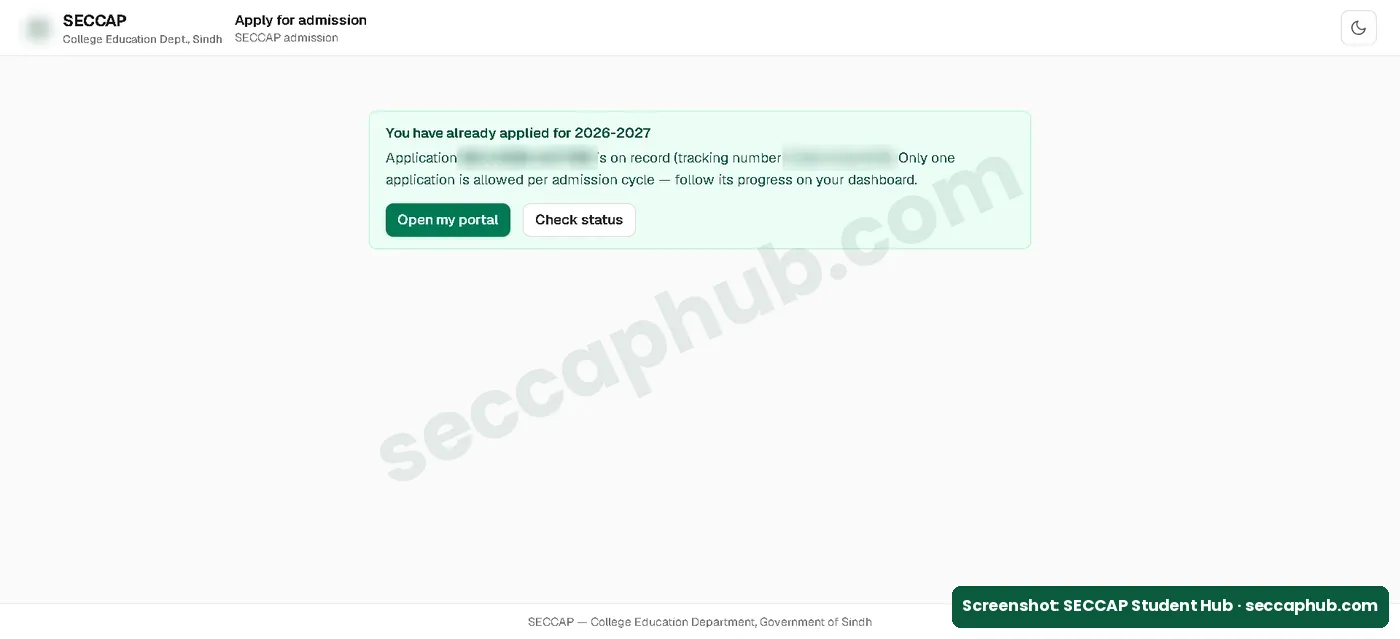
Another way in: if you open the Apply page after you have applied, the portal says You have already applied for 2026-2027 and gives two buttons, Open my portal and Check status. Only one application is allowed per admission cycle.
SECCAP check status and track application
For a government college in Sindh, this is how you check your college admission online. You can do it in two ways.
1. Track Application (no login needed)
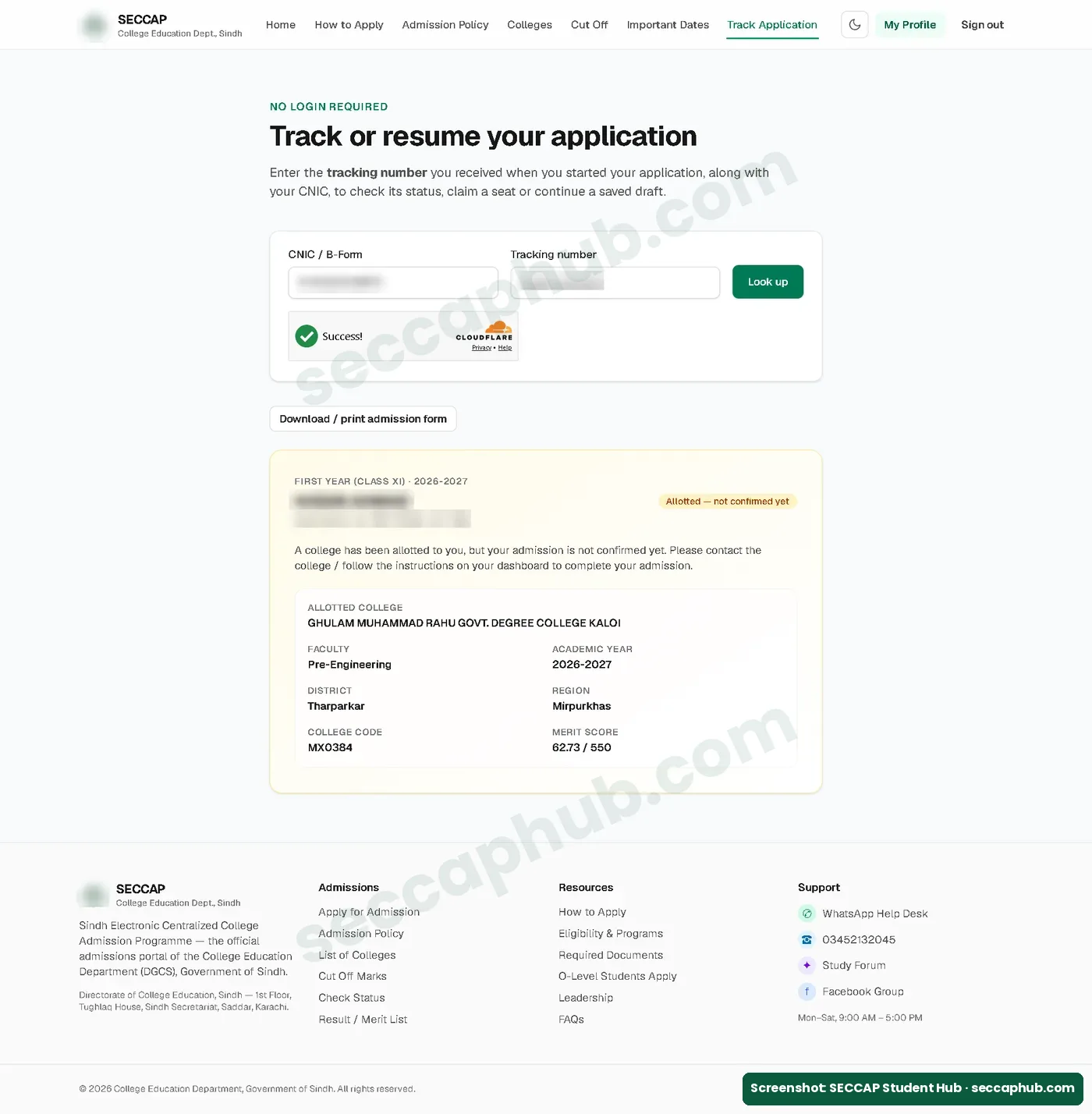
The official Track Application page says No login required. Enter your CNIC or B-Form and your tracking number, complete the security check, and press Look up. The same page lets you continue a saved draft. When you press Check status while logged in, these two boxes are filled in for you.
The result shows your status, allotted college, faculty, district, region, college code and merit score, with a Download / print admission form button.
2. Your portal dashboard and notifications
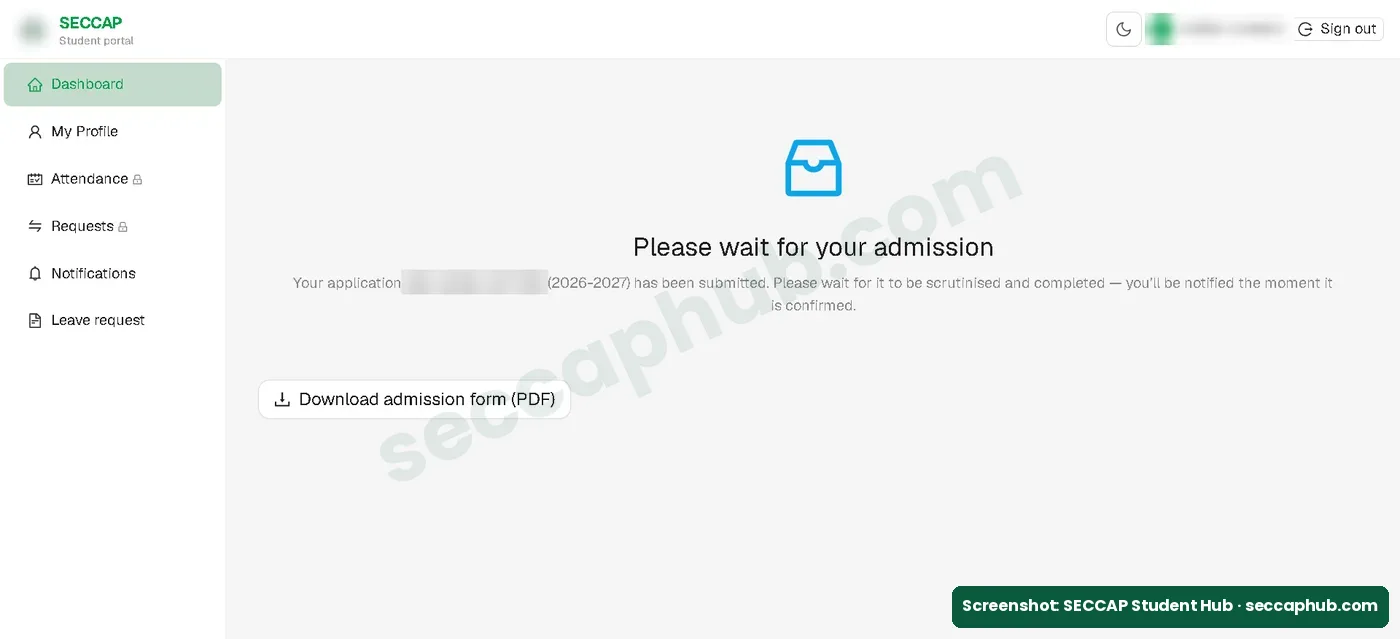
After you sign in, the Dashboard shows your application number and its stage. Right after submitting, ours said Please wait for your admission: the application is being scrutinised and you will be notified when it is confirmed. The dashboard also has a Download admission form (PDF) button.
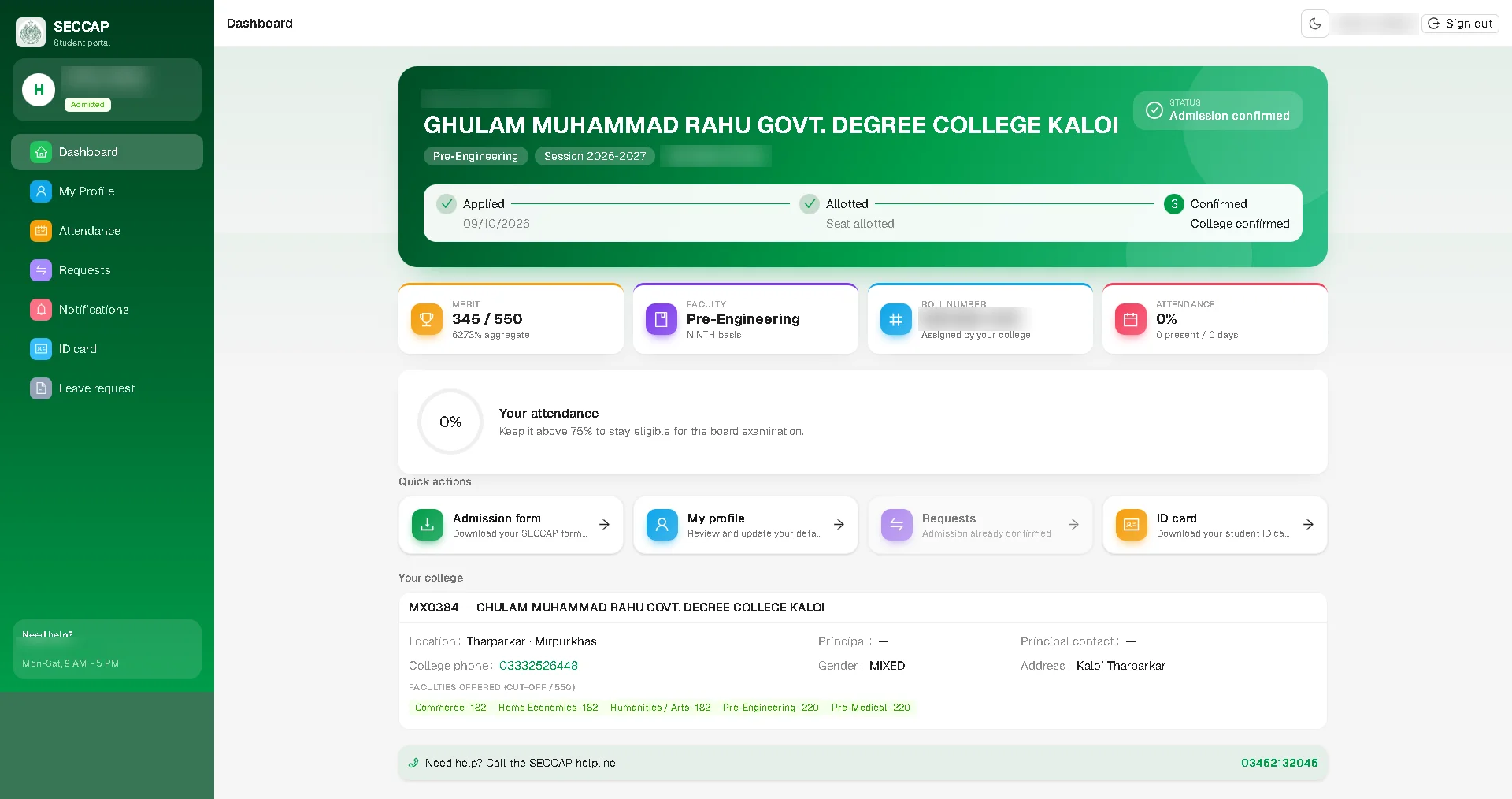
After your admission is confirmed, the dashboard changes. Ours, on 22 October 2026, showed:
- Your college name and the status Admission confirmed, with a tracker: Applied (with the date), Allotted, Confirmed (College confirmed).
- Your merit (marks out of 550 and your aggregate percentage), your faculty, and the basis of admission (for us, NINTH basis, as we applied on 9th-class marks).
- A college roll number, marked “Assigned by your college”.
- Your attendance, with the note: Keep it above 75% to stay eligible for the board examination.
- Quick links to the admission form, My Profile, Requests and the ID card, plus your college’s code, district, phone, address and the faculties it offers with their cut-offs.
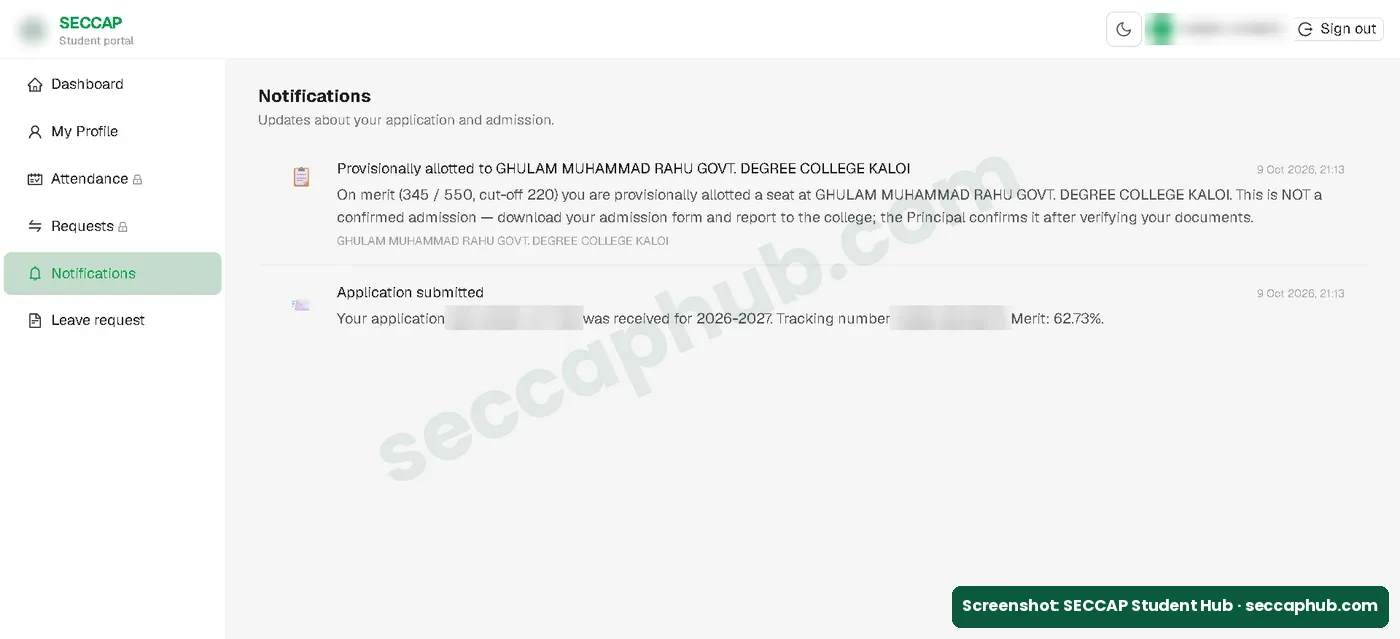
The Notifications section is where news about your application arrives. Ours showed Application submitted and then Provisionally allotted to a college, with our merit and the college cut-off.
What the status labels mean
| What you see | What it means | What to do |
|---|---|---|
| Please wait for your admission | Your application is submitted and being processed | Check Notifications regularly |
| Provisionally allotted / Allotted — not confirmed yet | A college on your list has given you a seat, but admission is not confirmed | Download your admission form and report to the college quickly; see our claim guide |
| Admitted / Admission confirmed | Your college has confirmed your admission (the tracker says College confirmed). In our case this appeared on 22 October 2026, without a visit to the college | Download your SECCAP ID card, and follow your college’s instructions for documents and fee |
About the merit score: right after allotment, our Track Application status showed 62.73 / 550, while the notification said Merit: 62.73%. After confirmation, the dashboard showed it clearly as 345 / 550 with 62.73% aggregate. So if you see a small number “out of 550”, it is your percentage.
What is inside the SECCAP student portal
| Section | What it does |
|---|---|
| Dashboard | Your application stage and the admission form PDF |
| My Profile | Your form details in parts: application details, photo, personal, family and contacts, medical, academic and transfers. After you submit, filled fields are locked; you can only fill what is still blank. If your form is sent back for correction, you can edit everything and submit again. |
| Attendance | Locked until your admission is confirmed. After our status changed to Admitted, it showed “Student attendance — coming soon” (22 October 2026). See our SECCAP online attendance guide |
| ID card | Download your college ID card as a PDF, with your photo and a verification QR code, once you are admitted |
| Requests | Claim requests for a college change, faculty change or cancellation. Ours was locked while the seat was only allotted. After admission was confirmed (22 October 2026) it said claim requests can no longer be raised from the portal, and to contact the College Education Department for any change. |
| Notifications | Updates about your application and allotment |
| Leave request | Shown as coming soon |
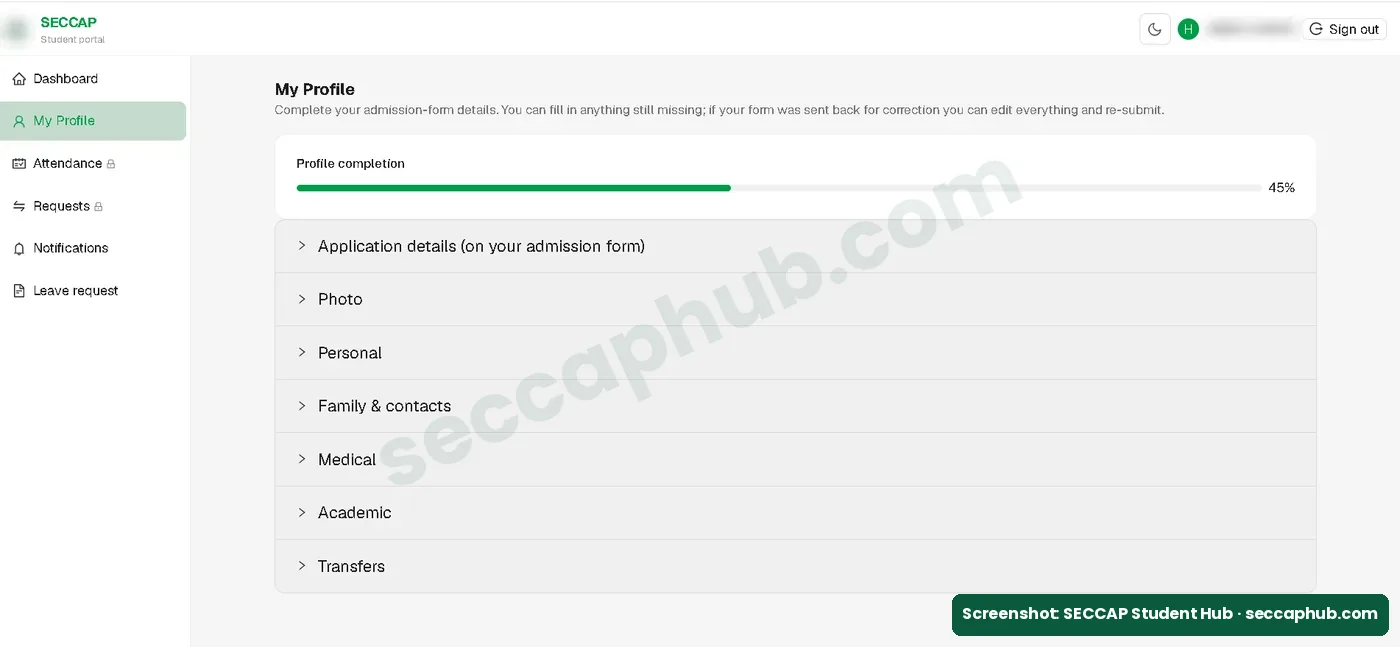
The portal’s My Profile page says your photo is required for your admission form and ID card, so add it there if you skipped it in the form.
Cannot log in to SECCAP?
| Problem | What to try |
|---|---|
| Did not save the password | Check your status on Track Application with your CNIC and tracking number, and contact the help desk for the password |
| Lost the tracking number | Log in: it is shown in the Application submitted message in your portal’s Notifications |
| Old bookmark opens the home page | Links with #/ in them are outdated; use seccap.dgcs.gos.pk/login |
| Page will not load | Try again later, clear your browser cache, or switch to mobile data |
| Still stuck | Contact the official help desk on 0345-2132045, Monday to Saturday, 9 am to 5 pm |
Keep your SECCAP account safe
- Never share your password, not even with a cafe operator or an agent.
- Anyone with your login can see your details and raise requests in your name.
- Sign out when you use a shared computer.
SECCAP login FAQs
My dashboard says “Offer lapsed” but also “Admission confirmed”. Which is right?
Go by the “Admission confirmed” box and your Admitted label. On an admitted student’s dashboard we looked at on 16 November 2026, the college marked “admitted here” was correct, the other four choices still showed “waiting”, and a separate box said “Offer lapsed”, which only refers to the old provisional offer. If you are unsure, call the help desk on 0345-2132045 before doing anything.
Is there a SECCAP app?
We did not find an official SECCAP app. The SECCAP login portal works in your phone’s browser: open seccap.dgcs.gos.pk and sign in with your CNIC and password. Be careful with apps or links that ask for your CNIC and SECCAP password; only enter them on the official portal.
What is my SECCAP username?
Your CNIC or B-Form number, the same 13 digits you entered on the form, without dashes.
Where do I get my SECCAP password?
If you applied directly, the portal makes it for you and shows it once, on the screen right after you submit the form. It is not sent by SMS or email, so save it immediately. If you registered first, use the password you set yourself.
Do I need to register first or verify an OTP?
No OTP. When I filled the form on 9 October 2026 I applied directly, without registering, and no OTP was asked; the account was created automatically when I submitted. Registering first is optional: the Register page asks you to set your own password, and when we checked it on 17 October 2026 it also had no OTP step.
How do I check my SECCAP status without logging in?
Open the official Track Application page, enter your CNIC and tracking number, complete the security check and press Look up.
What is the tracking number in SECCAP?
It is a 12-character code of letters and numbers that the portal shows when you save or submit the SECCAP form. With your CNIC, it lets you check your status on Track Application without logging in, or continue a saved draft. It is different from the application number, which starts with SEC-2026. Lost it? Log in and open Notifications: it is in the Application submitted message.
I forgot my SECCAP password. What should I do?
You can still check your status on Track Application with your CNIC and tracking number. For the password itself, contact the official help desk on 0345-2132045.
How can I check my college admission online?
For a Sindh government college, open the official Track Application page and enter your CNIC and tracking number, or log in and look at the status under your name. It moves from Please wait for your admission to Provisionally allotted and then Admitted.
Why can’t I use Attendance or Requests?
After our status changed to Admitted on 22 October 2026, Attendance showed “coming soon”, because the service behind it was not live yet. Requests said our admission was already confirmed, so claim requests could no longer be raised from the portal; for any change, contact the College Education Department.
اردو میں خلاصہ
- سیکیپ میں او ٹی پی نہیں ہوتا۔ پہلے سے رجسٹریشن ضروری نہیں، سیدھا فارم جمع کرنے پر اکاؤنٹ خود بن جاتا ہے۔
- یوزر نیم آپ کا شناختی کارڈ یا ب فارم نمبر ہے۔ سیدھا اپلائی کرنے پر پاس ورڈ سسٹم بناتا ہے اور صرف ایک بار اسکرین پر دکھاتا ہے؛ پہلے رجسٹر کیا ہو تو وہی پاس ورڈ جو آپ نے خود رکھا۔
- کالج داخلہ آن لائن چیک کرنے کے لیے لاگ ان کے بغیر Track Application صفحے پر شناختی کارڈ نمبر اور ٹریکنگ نمبر سے اسٹیٹس دیکھیں۔
- پاس ورڈ کسی کو نہ بتائیں۔
Sources and how we checked this guide
I filled the SECCAP form myself on the official portal on 9 October 2026 and took a screenshot of each screen. The screenshots on this page come from that application, with personal details blurred.
- Our own application, 9 October 2026: the submit screen, login details, dashboard, notifications, My Profile, Requests and Attendance. Checked again on 22 October 2026, when our status changed to Admitted and the ID card became available.
- Official Track Application page: checking status with CNIC and tracking number.
- Official login page.
- Official Register page and the Apply page instructions, checked on 17 October 2026.
This is an independent guide, not the official SECCAP website. If the portal says something different from this page, follow the portal and tell us so we can correct it.